Managing Users
Users are managed using the People menu in the administration menu.
Viewing existing users
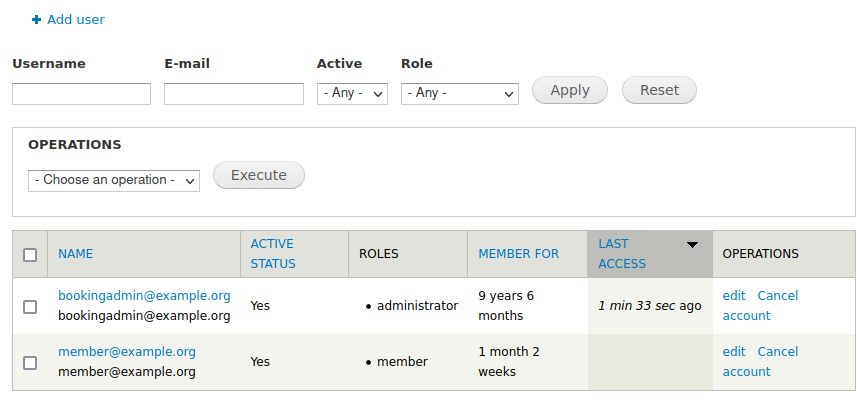
By clicking the People menu item, you will see the list of users in the system.
This list can be filtered by using the form fields at the top of the display. You can filter by username, email, status, or role.
For example, by typing a user's partial email address into the "E-mail" input and pressing "Apply" you can search for that user, and by selecting "Member" for Role you can show only users with a membership assigned.
Editing a user
Each user account may be edited directly by both a booking administrator, and by the user themself. The user's self-management functions are more limited; users cannot assign themselves roles such as "member", but booking administrators may assign memberships.
To edit a user, click "edit" from the user listing (as shown above), or when viewing the user's details page.
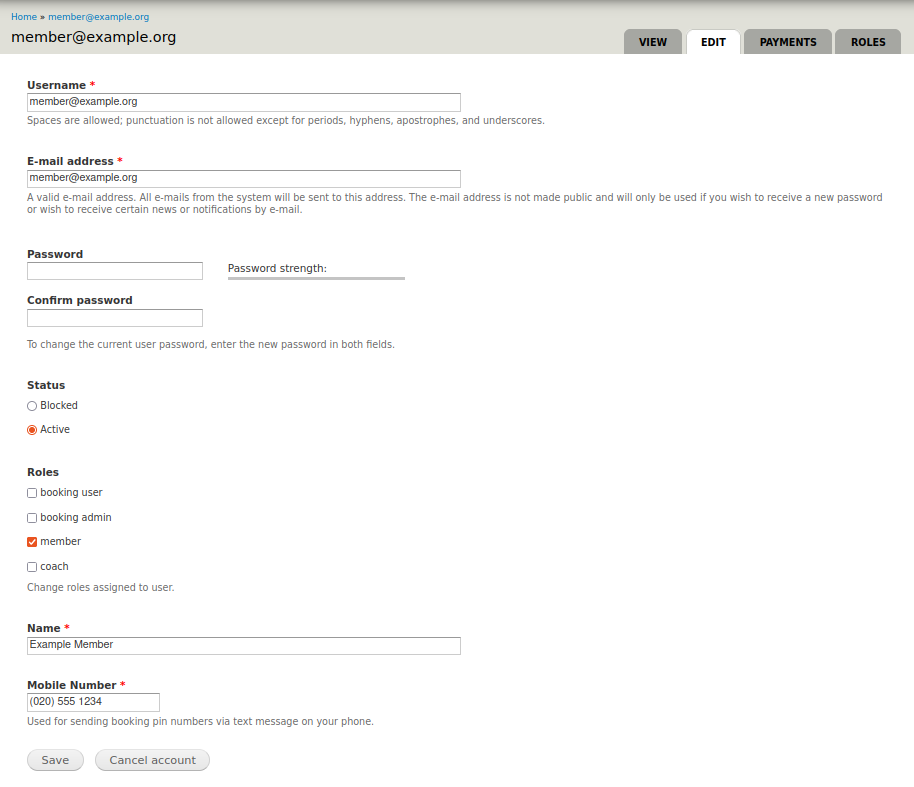
When editing a user, you can:
- Update details such as e-mail address, password, and mobile number using the inputs labelled for those fields.
- Disable the user, using the "Status" input
- Assign the user roles, using the "Roles" checkboxes
Adding a user
From the administration menu (People > Add User), or from the user listing page (Add user), you can create users. This works similarly to the "Editing a user" section again.