Booking times
To access the booking form, click "Make a booking" in the menu at the top of the page.
Choosing the date of your booking
At the top of the booking form is a set of calendars. The range of dates available will vary by the venue rules and your membership if applicable (see logging in to log in). Click the date you'd like to book a session, and you'll see the colour of that date as well as the date below the calendar change to match.
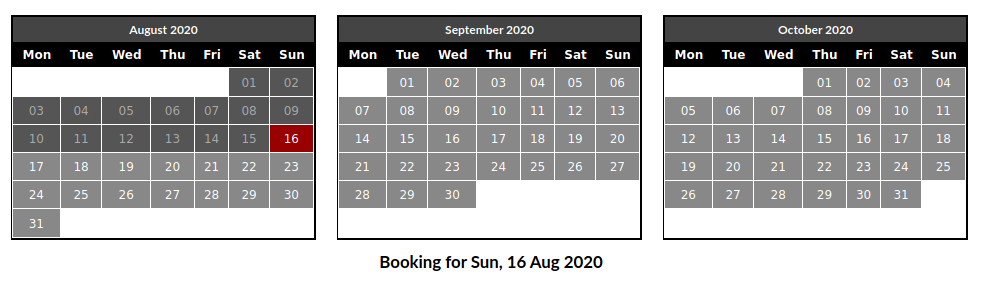
Above: Calendars to select date
Choosing the resource and time of your booking
Next, choose the time and resource (eg lane, room or facility) you wish to book by checking it.
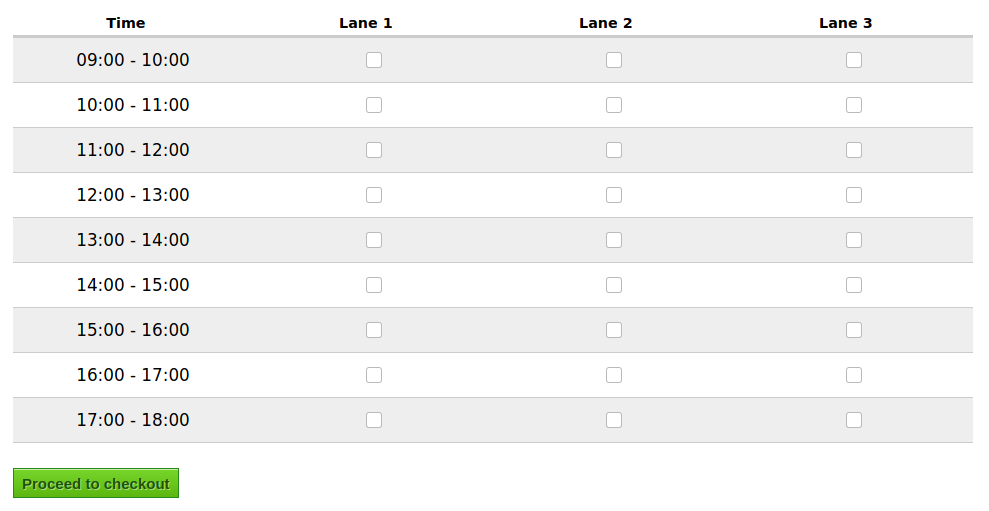
Above: Choosing the time and resource
Booking tips
- You may check multiple times, and if you wish you may check multiple resources at the same time.
- To select times on multiple days, use the calendar to navigate to another date and then check more times.
- On devices which permit it, you may drag your mouse over a series of checkboxes to select many of them at once.
- When you're done selecting times to book, click "Proceed to checkout" at the bottom of this screen.
Next, complete your checkout.